¶ About the program
Version: 2.7
System Update — an application for managing automatic update settings. It provides the ability to configure required repositories for obtaining packages and updates, publish local repositories, connect to a network of distributed repositories, as well as publish a repository/lazy mirror as a local web resource.
License:
GNU General Public License version 3 (GPLv3)
Running the program:
To run the program: Application Menu > System Update.
You need to select the program in the menu section or enter part of the program name in the search bar.
It can also be opened using "Settings Manager"  or "UBLinux Settings Manager"
  .
.
Changing settings in the utility is possible only with root privileges.
To elevate privileges, go to the utility menu and select "Elevate privileges to root".
¶ Interface
Buttons:
- Load
Load local or global configuration. Also possible to load settings from a third-party configuration file via "Load from file". - Save
Save the applied settings to the global and/or local configuration. Also possible to save settings to a third-party configuration file via "Save to file".
At the top of the window is the icon of the current loading mode:
 - Full save
 - Sandbox with profile saving
 - Full sandbox
 - Save to module
¶ System Update
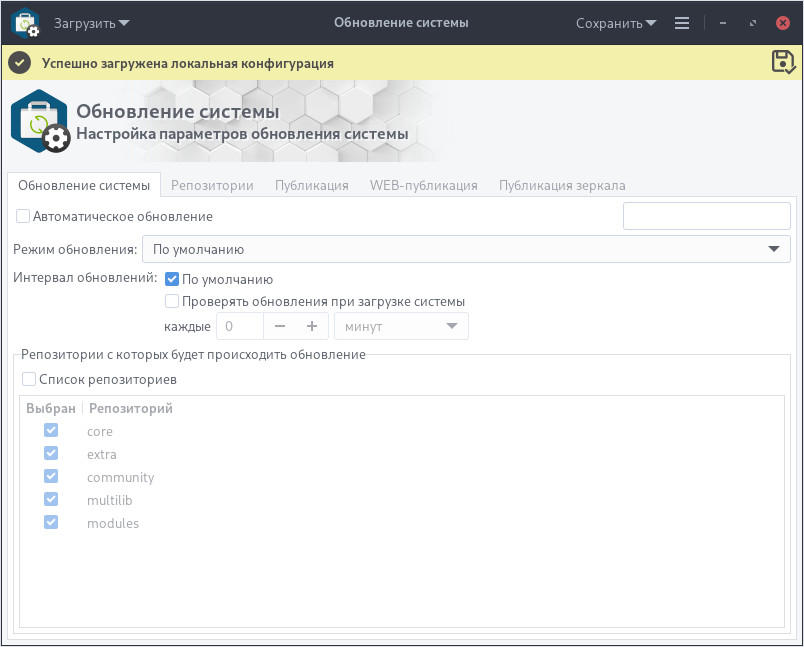
- Automatic Update
Allows enabling/disabling automatic system updates. - Update Mode
Allows choosing the update sequence: update all modules then the system, update only modules, update everything in the specified repository order. - Update Interval
Allows setting the system update frequency (in minutes/hours/days/month). Default value: every boot and every 7 days. - Check for updates on system startup
Allows enabling/disabling automatic update checks at system startup. - Repository list
Allows enabling/disabling package updates from the repositories listed in the table. If all are disabled — updates and package installs will be done only from repositories configured in the "Repositories" tab.
¶ Repositories
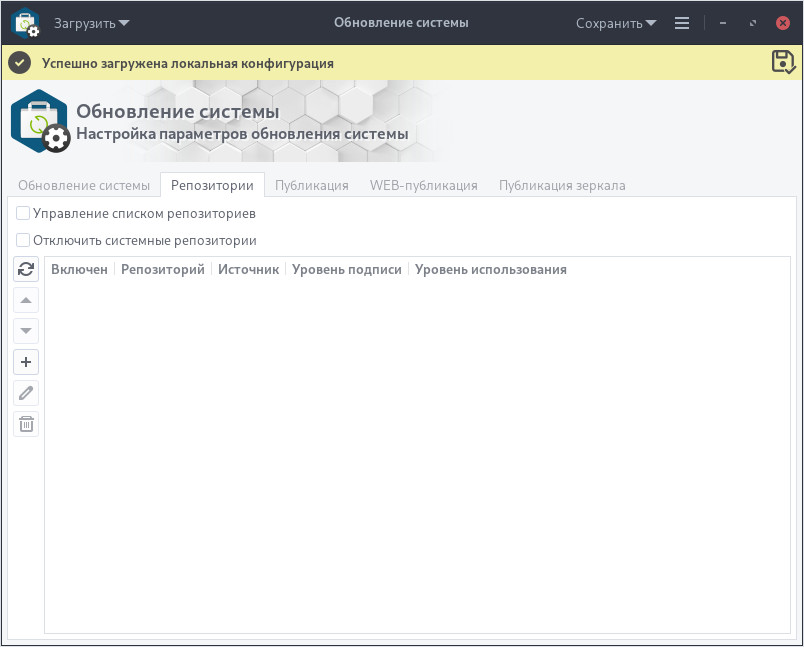
- Manage repository list
Allows enabling/disabling the repository list in the table. If disabled — updates and package installs will be done only from system pacman repositories: core, extra, community, multilib, modules. - Disable system repositories
Allows enabling/disabling system repositories. If system repositories are disabled (option enabled) — updates and installs will be done only from repositories listed in the table. - Repository table
Allows managing repositories with functional buttons on the right side of the window:- Refresh
Updates the repository information in the table. - Move Up
Used to raise the repository priority by moving it one position up in the list. The repository order matters as it affects the package search and update sequence. - Move Down
Used to lower the repository priority by moving it one position down in the list. Useful if a repository should be processed after others. - Add/Edit
Opens a window to add a new repository or edit its name, path, signature verification level, and usage. More details: "Add/Edit repository" - Delete
Deletes the selected repository from the table.
- Refresh
¶ Add/Edit repository
The window allows adding or editing the selected repository:
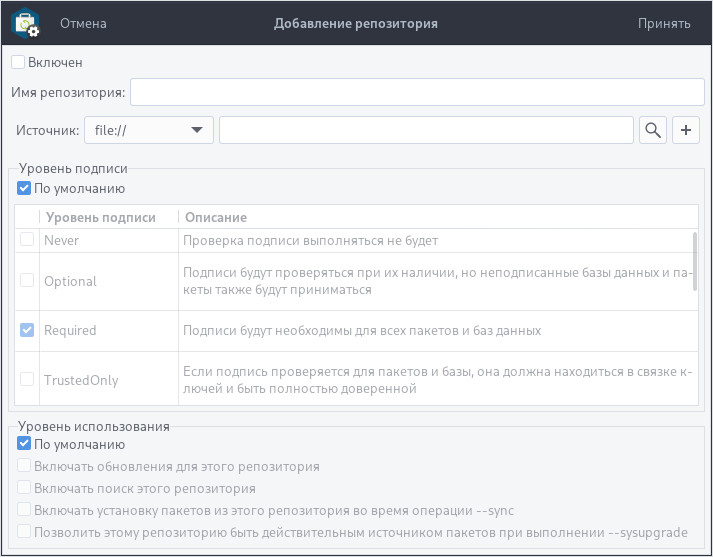
- Enabled
Allows enabling or temporarily disabling the repository. - Repository name
Allows specifying the repository name. - Source
Allows specifying the repository path. You should select a URL prefix and specify the address, e.g., https://repo.ublinux.ru/2405/arch - Signature verification level
Repository signature verification level; you can select multiple from main and additional levels.
Main levels:Level Description *Never Signature verification will not be performed *Optional Signatures will be checked if present, but unsigned databases and packages are accepted as well *Required Signatures are required for all packages and databases *TrustedOnly If signatures are verified, they must be in the keyring and fully trusted; marginal trust does not apply *TrustAll If a signature is verified, it must be in the keyring, but it does not require assigning a trust level (e.g., unknown or ultimate trust)
Additional levels:
Level | Description
------------- | -------------
*PackageNever |Disables signature checking only for packages.
*DatabaseNever |Disables signature checking only for the database.
*PackageOptional |Checks signatures only for packages if present; unsigned packages are accepted as well.
*DatabaseOptional |Checks signatures only for the database if present; unsigned databases are accepted as well.
*PackageRequired |Requires signatures only for packages; unsigned packages are not accepted.
*DatabaseRequired |Requires signatures only for the database; unsigned databases are not accepted.
*PackageTrustedOnly |Package signatures must be in the keyring and fully trusted; marginal trust does not apply.
*DatabaseTrustedOnly |Database signatures must be in the keyring and fully trusted; marginal trust does not apply.
*PackageTrustAll |Package signatures must be in the keyring but do not require assigning a trust level.
*DatabaseTrustAll |Database signatures must be in the keyring but do not require assigning a trust level.
- Usage level
Level Description *All Enables all repository functions: update, search, install, and use during system update. Default. *Sync Enables repository for package updates. *Search Allows using the repository for package searching. *Install Allows installing packages from the repository during --sync command execution. *Upgrade Indicates that the repository can be a package source during the --sysupgrade command for system update.
¶ Publishing
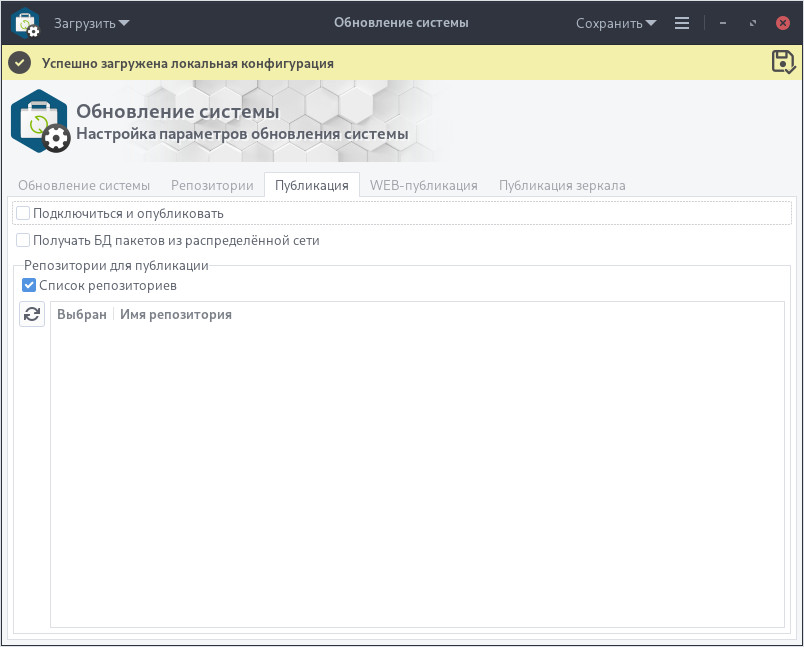
- Connect and publish
Allows connecting selected repositories from the table to the distributed repository network. - Receive package DB from distributed network
Allows receiving the pacman package database from the distributed repository network. - Repository list
Allows enabling/disabling management of the repository list.
¶ WEB publishing
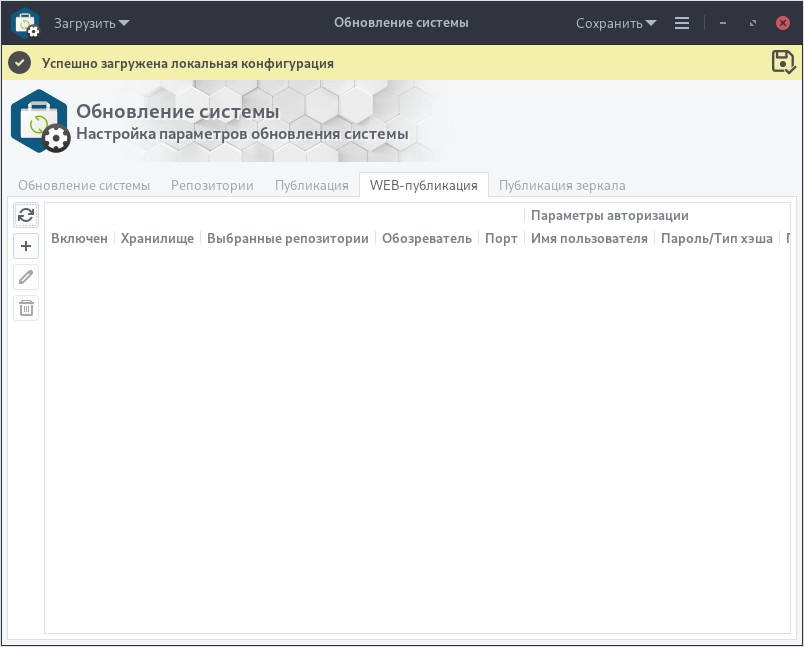
- Add/Edit
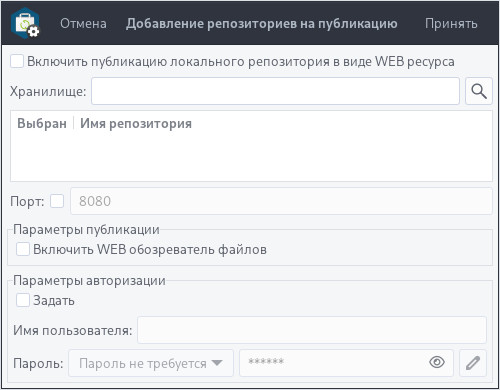
- Enable publishing local repository as WEB resource
Allows enabling or temporarily disabling repository publishing. - Storage
Allows specifying the storage path, after which the related repositories will be shown in the table. Individual repositories can be excluded if necessary. - Port
Allows specifying the port through which the repository is available. Default: 80. - Enable WEB file browser
- Set
Allows enabling/disabling authorization. - Username
- Password
Allows setting a password for the user, which can be either unencrypted or encrypted using SHA256 or SHA512 algorithms.
- Enable publishing local repository as WEB resource
¶ Publishing a Mirror
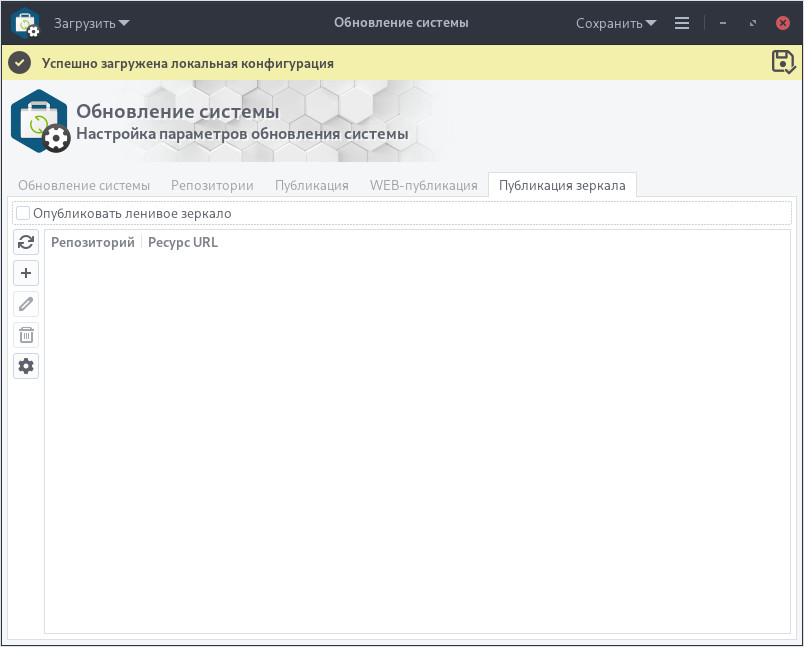
- Publish lazy mirror
Allows enabling/disabling the publication of a lazy mirror for all repositories. - Refresh
Allows updating the repository information in the table. - / Add/Edit
Allows adding/editing an individual repository.
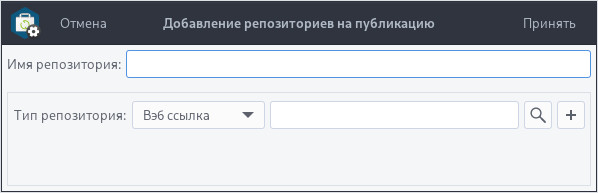
- Repository name
Allows specifying/changing the repository name to which remote nodes will connect. - Repository type
Allows selecting the repository type and specifying the full resource URL.
When choosing "Mirror file," be cautious and make sure the current server URL is NOT included in this file.
- Repository name
- Delete
Allows deleting the selected repository from the table. - Configure
Allows opening general configuration for setting up lazy mirror publication:- Service port
Allows specifying the port for the selected repository. Default: 80 - Cache directory
Allows selecting the cache directory. Default:/memory/layer-base/1/repopublic_cache - Idle duration (in seconds)
Allows specifying the idle duration (in seconds) after which the file should be deleted from the cache. Default: 360000 seconds (100 hours). - Timeout (in seconds) for loading internet cache
Allows specifying the timeout (in seconds) for loading the internet cache. Default: 3600 seconds (1 hour) - Work via proxy
Allows specifying a proxy address, e.g., http://foo.company.com:8989 - User agent
Allows specifying the agent used for retrieving files from repositories. Default: repopublic/1.0 - Standard cron expression
Allows setting a cron expression, e.g.: 0 0 3 * * * *. - Number of consecutive days systems on the network have not been updated
Default: 30 - Number of consecutive days update requests have not been made
Default: 300
- Service port
¶ Help
Syntax:
ubl-settings-update [arguments]
Arguments:
| Argument | Description |
|---|---|
| --help, -h | Show help options |
| --version, -V | Show current version |
| --lock-help | Lock help invocation |
| --lock-save | Lock saving local and global configuration |
| --lock-save-local | Lock saving local configuration |
| --lock-save-global | Lock saving global configuration |
| --lock-load-global | Lock loading global configuration |
¶ Usage
¶ Adding a Repository
To add a repository from which software installation and updates may be performed, go to: Applications Menu > launch "System Update".
You need to select the program in the menu section or type part of the program name in the search bar.
-
Switch to the "Repositories" tab and select
"Manage repository list".If you need to disable standard repositories (on the "System Update" tab), you should also select "Disable system repositories."

-
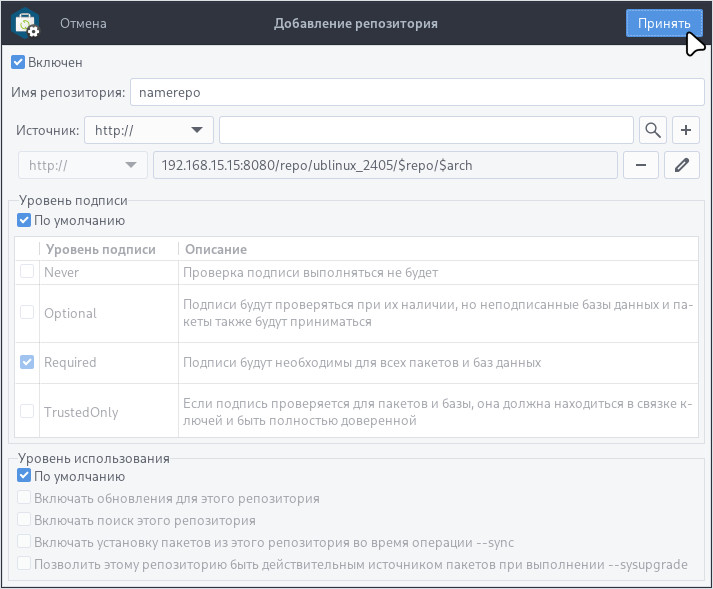
Click "Add" and in the addition window specify:
- Enabled;
- Repository name;
- Source;
- Signature level (optional);
- Usage level (optional);
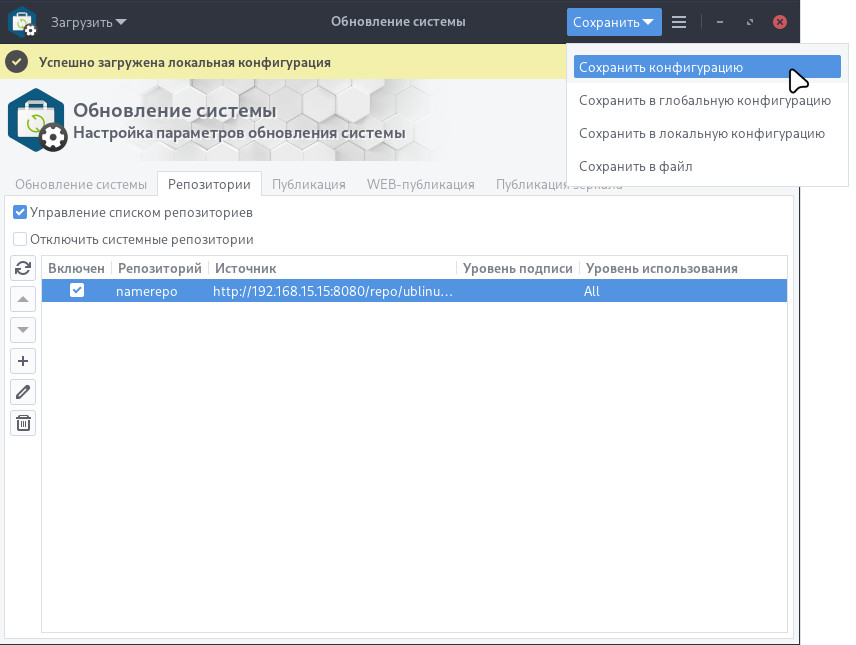
- Save the changes by clicking "Save" > "Save configuration":
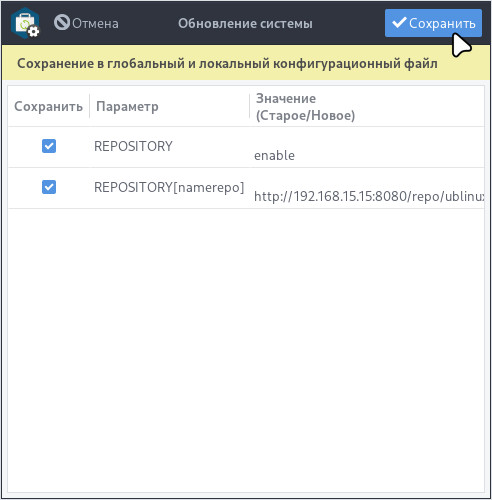
- Confirm saving by clicking "Save":
¶ Setting up automatic system update
To enable automatic system update, go to: Applications Menu > launch "System Update".
Select the program in the menu section or type part of the program name in the search bar.
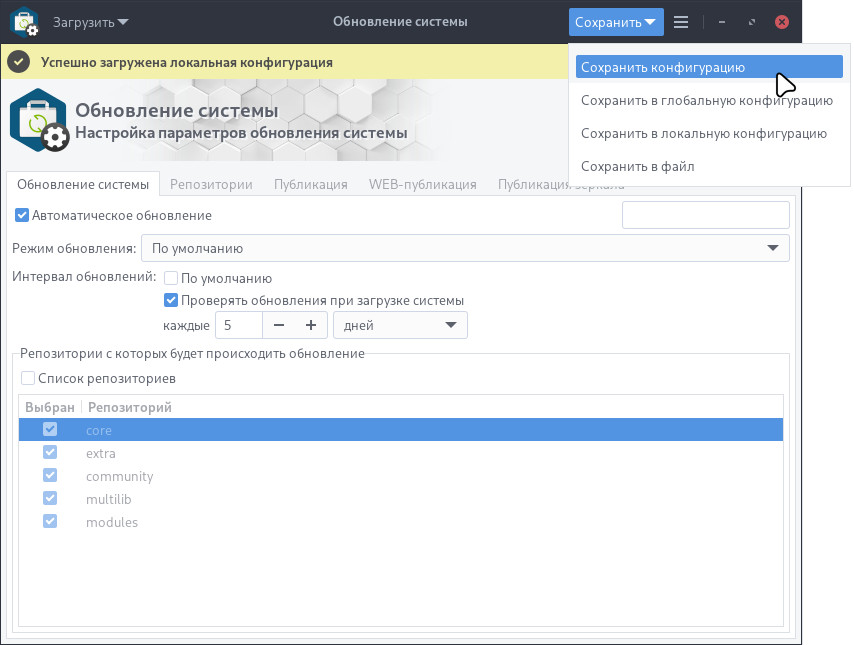
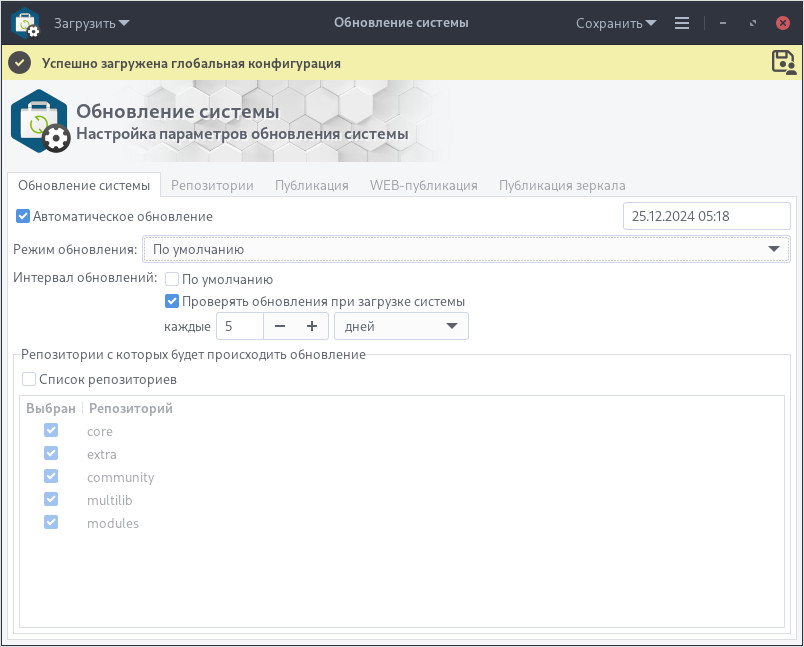
On the "System Update" tab, set:
- Automatic update
- Update mode
Choose the desired system update mode. By default, all modules are updated first, then the system is updated. - Update interval
Set the required update time interval. By default, updates are checked and installed on every system boot and every 7 days. - Repository list
If necessary, select repositories from which updates will be applied. By default, all repositories are selected.
To save the settings, click "Save" > "Save configuration".
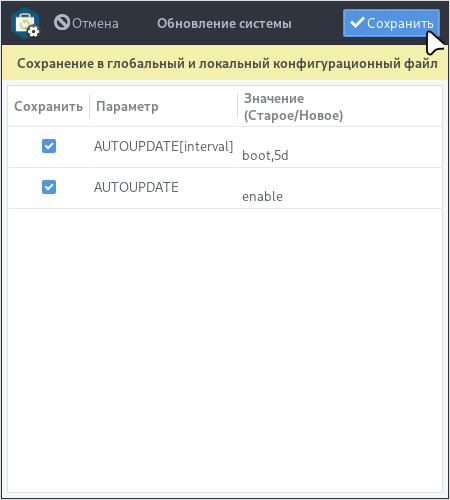
Then confirm saving by clicking "Save":
After each update, the date of the last system update changes in the right part of the window:
¶ Lazy Mirror Publishing
Lazy mirror is a mechanism where clients connect to a main server configured as a "lazy mirror" to update and install programs and modules.
How it works:
1. One of the clients requests package updates/installation;
2. The main server downloads updates/packages from the repository and stores them in the local repository;
3. Other clients request package updates/installation and download them from the local server.
To publish a lazy mirror, go to: Applications Menu > run "System Update".
Select the program in the menu or enter part of the program name in the search field.
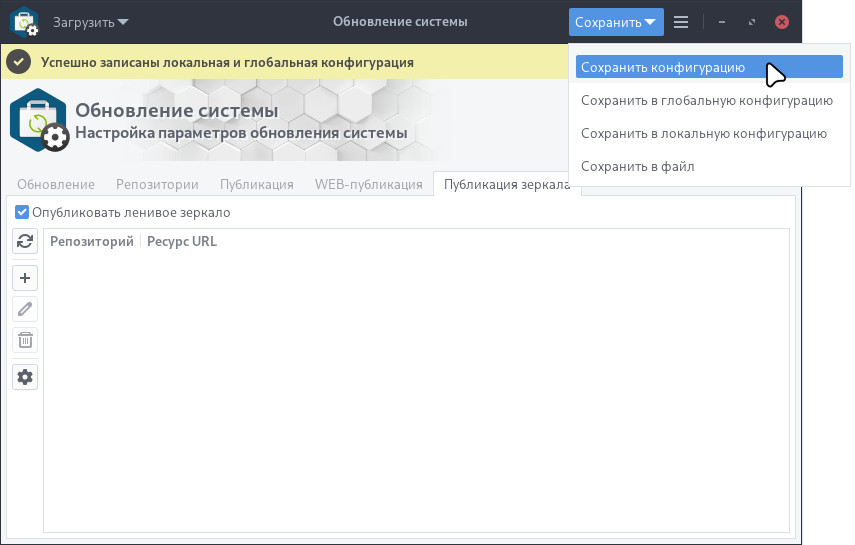
On the "Mirror Publishing" tab, check "Publish lazy mirror" and save: "Save" > "Save to configuration":
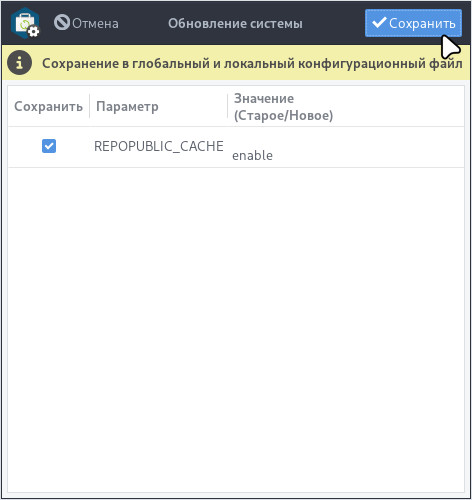
Then confirm saving by clicking "Save":
¶ Connecting to a Lazy Mirror
To connect to a lazy mirror, go to: Applications Menu > run "System Update".
Select the program in the menu or enter part of the program name in the search field.
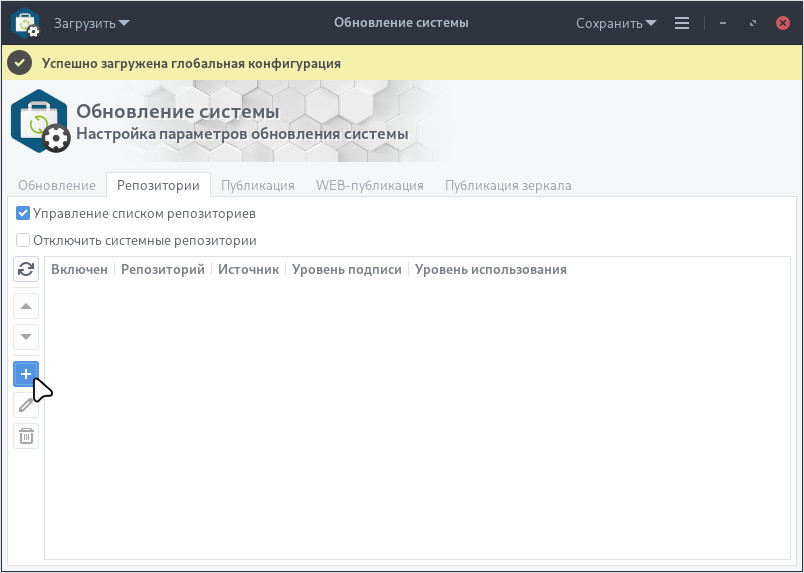
On the "Repositories" tab, check "Manage repository list" and click the "Add" button:
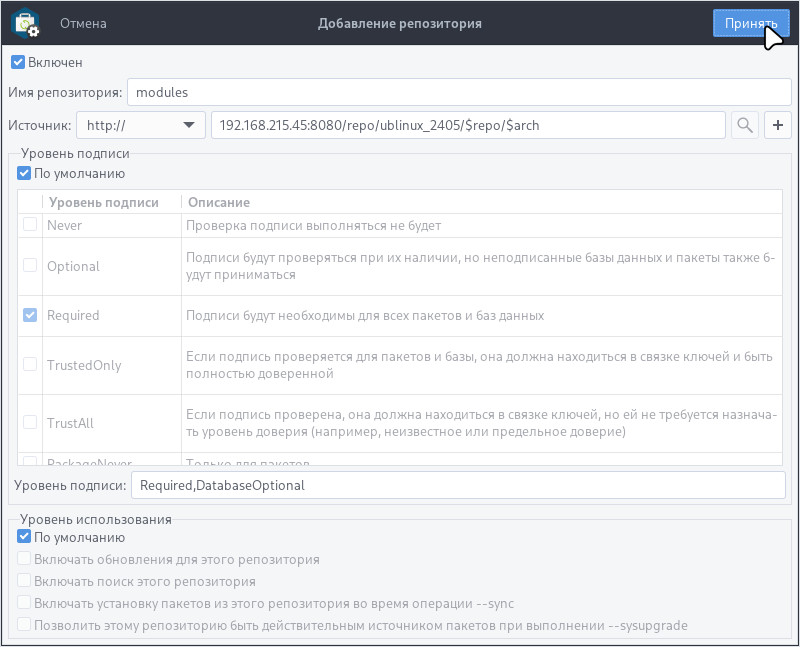
In the add repository window, enter:
- Enabled
Check the box to enable the repository. - Repository name
For example: modules - for updating and installing packages from this repository. - Source
Select "http://". - Repository path
Specify the repository path, for example: <ipaddress>:<port>/repo/ublinux_2405/$repo/$arch
Where:
- <ipaddress> — replace with the IP address of the PC where the lazy mirror was published;
- <port> — replace with the port through which the repository is accessible.
Click "Accept":
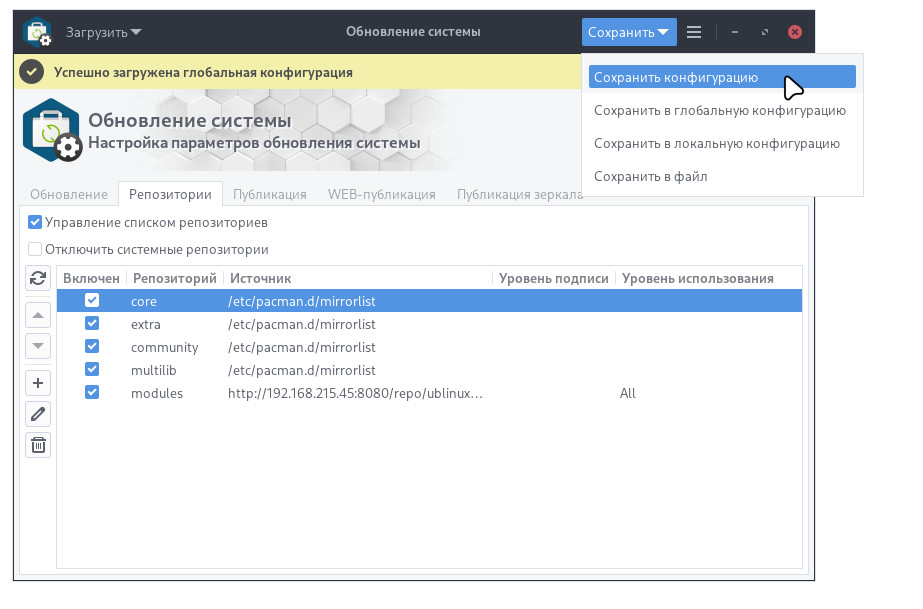
To save the configured settings, click "Save" > "Save configuration".
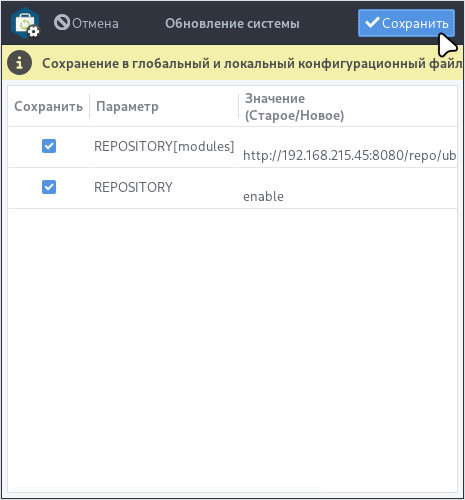
Confirm saving by clicking "Save":
If you need to keep only lazy mirror repositories in the system, you should disable system repositories.
¶ Disable System Repositories
To disable system repositories: core, extra, community, multilib, modules — go to: Applications Menu > run "System Update".
Select the program in the menu or enter part of the program name in the search field.
On the "Repositories" tab:
- Check "Manage repository list";
- Check "Disable system repositories";
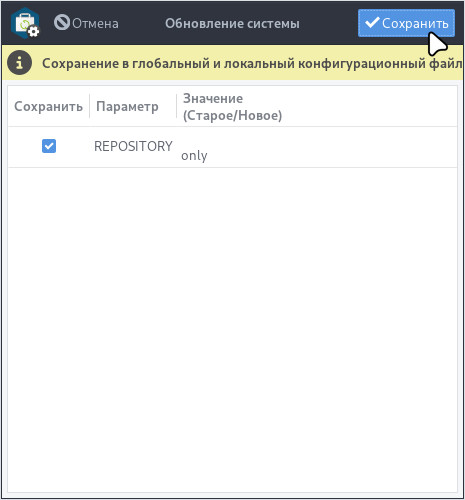
Save changes by clicking "Save" > "Save configuration":
Confirm saving by clicking "Save":
After loading the configuration, disabled system repositories will appear grayed out:
¶ Enable System Repositories
To enable system repositories, go to: Applications Menu > run "System Update".
Select the program in the menu or enter part of the program name in the search field.
On the "Repositories" tab:
- Uncheck "Disable system repositories";
When saving the current settings, package updates and installations will use: system repositories and repositories added to the list.
If you need to reset system repositories to default settings, you should also uncheck "Manage repository list". In this case, only the system repositories core, extra, community, multilib, modules will be available for update and package installation.
Save changes by clicking "Save" > "Save configuration":
Confirm saving by clicking "Save":
¶ Installation
Installation can be done via a module or a package:
Use the "Install and Remove Programs" utility for installation.
Module required for installation:
- ubm-100-ublinux
Use the "Install and Remove Programs" utility for installation.
Package required for installation:
- ubl-settings-update
Attention! If the system is booted in full persistence mode, then changes made to the system will be saved after reboot.
If booted in another mode, it is recommended to use the "Save changes" utility before rebooting the system.